How to Turn Long Videos into Short Clips with AI (And What to Realistically Expect)
Cutting clips by hand takes 5 to 10 minutes per video. If you have a 60-minute podcast, three episodes a week, and three platforms to post on, you are looking at hours of editing before a single clip goes live. Most creators never get there. The content sits unused.
AI clip tools change that math. One long video can produce dozens of clips in a single session. But the output is only useful if you know how to review it before you hit publish. Bad AI picks waste time too.
By the end of this guide you will know how to go from any long video to platform-ready short clips, what free tools actually include, how to catch weak AI selections before they go live, and where short-form video fits in the broader creator landscape.
Key Takeaways
- AI clip creation can cut editing time dramatically, but output quality depends on your content type and how carefully you review before exporting.
- Free tiers vary widely. Watermarks, clip caps, and minute limits differ across tools. Knowing the real constraints before you start saves wasted time.
- A five-point pre-export review catches the most common AI selection errors and is the difference between publishable clips and ones that need a full redo.
- Volume is where AI tools separate from manual editing. Tools like GotReach produce up to 300 clips in approximately 30 minutes versus 5 to 10 minutes per clip by hand.
How AI Clip Creation Actually Works
AI clip creation works like this: the tool scans your long video, identifies the moments most likely to hold attention on their own, and extracts them as standalone clips.
The AI scans your video for moments that are most likely to hold a viewer's attention on their own, then gives you a shortlist to review before you export. It does not watch the video the way a human editor does. It reads patterns and gives you a ranked list of candidates.
That shortlist is only as good as the input. A 60-minute podcast with clear speaker turns and minimal background noise gives the AI clean material to work with. A 60-minute gaming stream with ambient audio and no clear speech patterns will produce weaker candidates. Quality in shapes quality out.
For a deeper look at how AI clip generators analyze your video, the linked post covers the mechanics in more detail. This guide focuses on the practical workflow.
Choosing the Right Tool for Your Content Type
Not every AI clip tool performs equally well across every video category. The biggest mistake new users make is choosing a tool based on price or brand name rather than content fit.
Here is what actually matters by content type:
- Podcasts and interview content produce the strongest AI output because the input is clean. Clear speech, defined speakers, and topic shifts give the AI natural clip boundaries. Tools with transcript-based clipping work especially well here.
- Webinars and recorded presentations benefit from timestamp navigation and slide-break detection. The AI can use topic transitions to identify standalone segments.
- Gaming and sports footage relies on motion and action detection rather than speech. AI tools designed for talk-based content may underperform here.
- Vlogs and social-first content often have mixed input quality. Results vary more, and manual review is more important.
A podcast host publishing three 60-minute episodes per week needs a completely different output volume than a webinar marketer clipping one monthly recording. No single tool dominates every content category equally.
GotReach is designed for creators who need to produce a high volume of clips quickly. A single session can produce up to 300 clips in approximately 30 minutes — a scale that one-clip-at-a-time tools cannot match.
For a detailed side-by-side breakdown, see how major clip makers compare feature by feature.
| Content Type | Key AI Capability Needed | Volume Requirement | Recommended Approach |
|---|---|---|---|
| Podcast | Transcript-based clipping, speaker tracking | High (multiple episodes per week) | Use a tool with transcript support and bulk clip generation |
| Interview | Speaker identification, topic shift detection | Medium to high | Use a transcript-driven or highlight-detection tool |
| Webinar | Timestamp navigation, slide-break detection | Low to medium | Session-based clipping with a review step |
| Gaming / Sports | Motion detection, action recognition | Varies | Choose an action-optimized tool; plan for more manual review |
| Vlog | Mixed signal detection | Medium | Any tool with a strong manual review workflow |
Step-by-Step: How to Create Short Clips from a Long Video
You do not need editing experience to follow this process. Each step is format-agnostic and works whether you are uploading a podcast recording, a webinar file, or a long social video.
-
Upload or paste the URL of your source video. Most tools accept a direct file upload or a link to a hosted video. If your video is long, upload time depends on file size. Keep the original at full quality so the AI has clean material to work with.
-
Set your language and clip preferences. Choose clip length targets (typically 30 to 60 seconds for most platforms), how many clips you want, and whether you want the AI to focus on specific parts of the video. More specific inputs produce better output.
-
Review the AI-selected clip candidates. The AI gives you a ranked list. Scan the first few seconds of each clip. If a clip starts mid-sentence, with ambient noise, or with a reference that makes no sense without context, flag it before exporting. This step is not optional.
-
Add captions, resize for your target platform, and apply any branding. Captions are text overlaid on the video so viewers can follow along without sound. Aspect ratio (the shape of the video frame) needs to match the platform: vertical for TikTok and YouTube Shorts, square or vertical for Instagram. Check whether your tool handles resizing automatically before you spend time formatting each clip by hand.
-
Export your clips and publish to your chosen platforms. GotReach automates the publishing step across seven platforms from a single session — so you are not logging into each platform separately to repost the same clip.
Ready to run this process on your next long video? Start creating clips free with GotReach and see how many clips one session produces.
Free vs. Paid Tiers: What AI Clip Tools Actually Include
Free tiers are not equal. Some tools limit how many clips you can export per month. Others add a watermark to every free export, which makes the content unpublishable for most professional uses. Knowing the real constraints before you invest time in a tool saves a lot of frustration.
| Tool | Free Tier Clips Per Month | Watermark on Free | Paid Plan Starting Price | Notable Free Restriction |
|---|---|---|---|---|
| GotReach | Up to 30 videos | No watermark | See current plans | One connected social account |
| OpusClip | Limited clips | Yes (varies by plan) | Varies by plan | Watermark on free exports |
| Vizard | Limited by minutes | Yes on free | Varies by plan | Minute cap per month |
| Descript | Limited projects | Yes on free | Varies by plan | Watermark and export limits |
| Kapwing | Limited exports | Yes on free | Varies by plan | Watermark on free exports |
Note: Competitor free tier details vary and change frequently. Confirm current limits directly on each tool's site before committing.
GotReach's confirmed free tier: up to 30 videos per month, one connected social account, no watermarks, and a 30-day free trial with no commitment required.
A paid plan makes sense when you need more than 30 clips per month, when you need to connect more than one social account, or when bulk creation at scale is the goal. See what a paid plan unlocks at GotReach.
How to Review AI Clip Output Before You Publish
AI clip selection is imperfect. The tool identifies patterns in the data. It does not know your brand voice, your audience's context, or which moments you would personally choose to represent your content.
The most common problems with unreviewed AI output:
- Clips that start mid-thought, such as a clip that opens with "As I was saying..." with no context for what was being said
- Clips that require surrounding video to make sense, like a reference to something shown three minutes earlier
- Captions that are inaccurate, especially for technical terms, names, or industry-specific language
- Clips that are technically clean but tonally off-brand, such as a moment that was casual side conversation rather than a core message
Reviewing AI output is a skill that gets faster with practice. The first batch takes longer because you are learning how the tool interprets your content. By the third or fourth session, you will know which types of clips to approve quickly and which to skip.
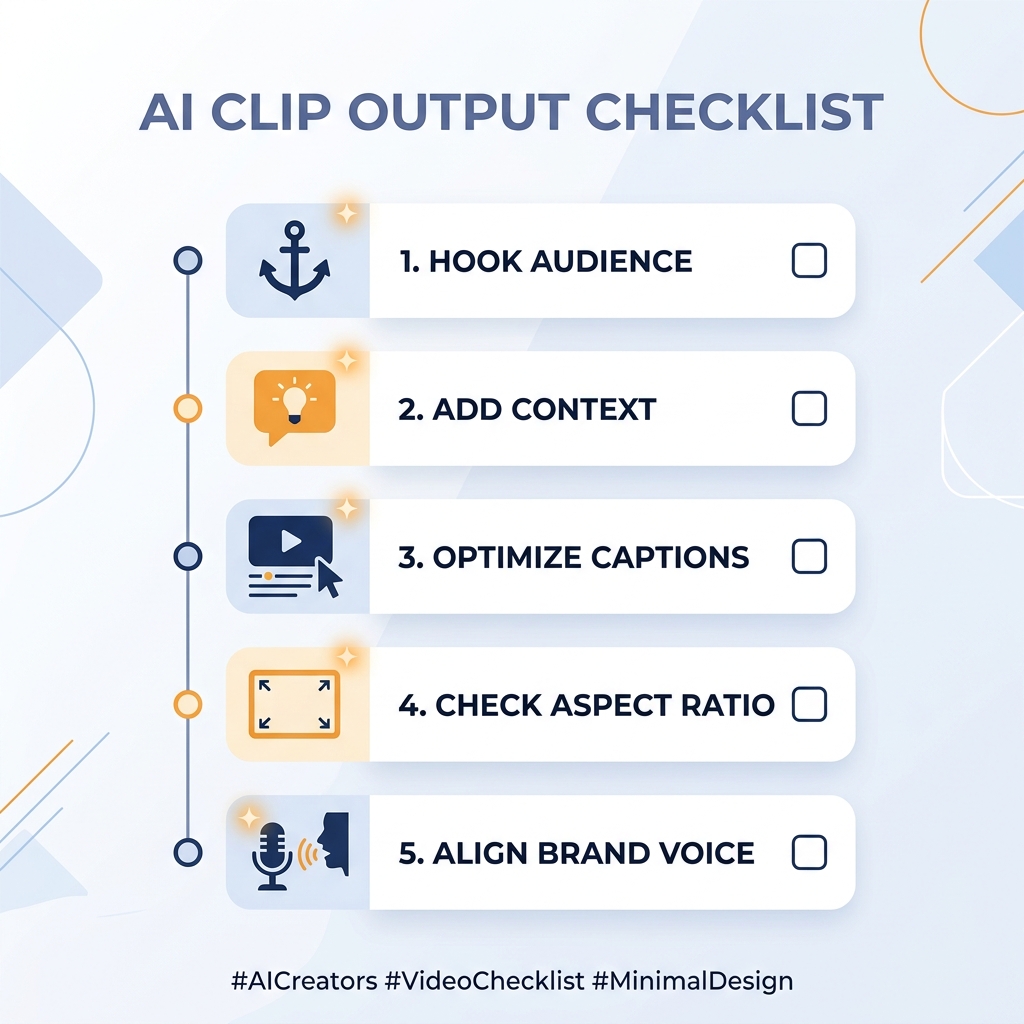
Use this checklist before every export:
- Does the clip start with a strong hook in the first 3 seconds?
- Does the clip make sense without the surrounding video context?
- Are captions accurate and readable on a mobile screen?
- Is the aspect ratio correct for the target platform?
- Is the clip length within the platform's recommended range?
- Does the clip represent your brand voice, not just an AI's guess at a highlight?
Platform Formats: Sizing and Length Requirements for Short Clips
Getting the clip format right before you publish matters. Each platform has specific requirements for video shape and length. Posting the wrong format means cropped content, black bars, or clips that simply do not perform.
| Platform | Aspect Ratio | Max Recommended Clip Length | Captions Required |
|---|---|---|---|
| TikTok | 9:16 (vertical) | 60 seconds for high-performing organic | Strongly recommended |
| YouTube Shorts | 9:16 (vertical) | 60 seconds | Strongly recommended |
| Instagram Reels | 9:16 (vertical) | 90 seconds | Strongly recommended |
| Instagram Feed | 1:1 (square) or 4:5 | 60 seconds | Recommended |
For official YouTube Shorts specifications, see YouTube's Shorts creator guidelines.
Most AI clip tools include auto-resize capabilities. Confirm your tool handles this before you spend time manually reformatting every export. GotReach automates publishing across seven social platforms from a single workflow, removing the need to manually repost to each destination.
Start Turning Long Videos into Short Clips Today
The bottleneck is not your content. You already have long-form video worth sharing. The bottleneck is the one-clip-at-a-time manual process that makes scaling feel impossible.
AI clip tools remove that bottleneck, but only if you go in with realistic expectations, choose a tool that fits your content type, and take five minutes to review before you export.
GotReach produces up to 300 clips in approximately 30 minutes from a single source video, distributes across seven platforms without manual reposting, and preserves your voice instead of replacing you with an AI avatar. The free tier includes up to 30 videos per month with no watermarks and one connected social account.
Ready to turn your next long video into dozens of platform-ready clips? Start your 30-day free trial today. No commitment, no watermarks, no editing experience required.
Frequently Asked Questions
What is the best free AI tool to create clips from long videos?
The best free tool depends on your content type and how many clips you need per month. GotReach's free tier includes up to 30 videos per month with no watermarks and one connected social account, which covers most creators who are starting out. Always check each tool's current free tier limits before committing, since restrictions change.
How does AI decide which parts of a video to clip?
The AI scans the video for moments that are most likely to hold a viewer's attention on their own. The quality of that process depends heavily on your input. Clear speech, minimal background noise, and structured content give the AI better material to work with.
Can I create clips without any video editing experience?
Yes. The workflow covered in this guide requires no timeline editing background. You upload the video, set your preferences, review the AI's shortlist, and export. The most important skill is learning to spot weak AI picks before you publish, which improves after a few sessions.
Do free clip maker tools add watermarks to my videos?
Some do, some do not. Several popular tools add a visible watermark to every export on the free plan, which makes the content unusable for most professional publishing. GotReach does not add watermarks on its free tier. Check each tool's current policy before you start.
Which AI clip tool works best for podcasts vs. gaming vs. webinars?
Podcasts and interview content tend to produce the strongest AI output because the speech is clear and structured. Webinars benefit from tools with timestamp and slide-break detection. Gaming and sports footage relies more on motion detection, which not all tools support equally. There is no single tool that dominates every category, so matching the tool to your primary content type matters.
Is my video data private and secure when I upload it to an AI clip tool?
Privacy policies vary by tool. Before uploading any video, review each tool's data handling terms to understand how your content is stored, processed, and whether it is used to train AI models. For GotReach specifically, you can review the current privacy policy at gotreach.com. Do not assume your content is private without checking the policy first.
How long does it take to create clips with AI?
Manual one-clip-at-a-time editing takes 5 to 10 minutes per clip. With a bulk AI clip tool like GotReach, a single session can produce up to 300 clips in approximately 30 minutes. Add 5 to 10 minutes for the pre-export review and you are publishing in a fraction of the time.