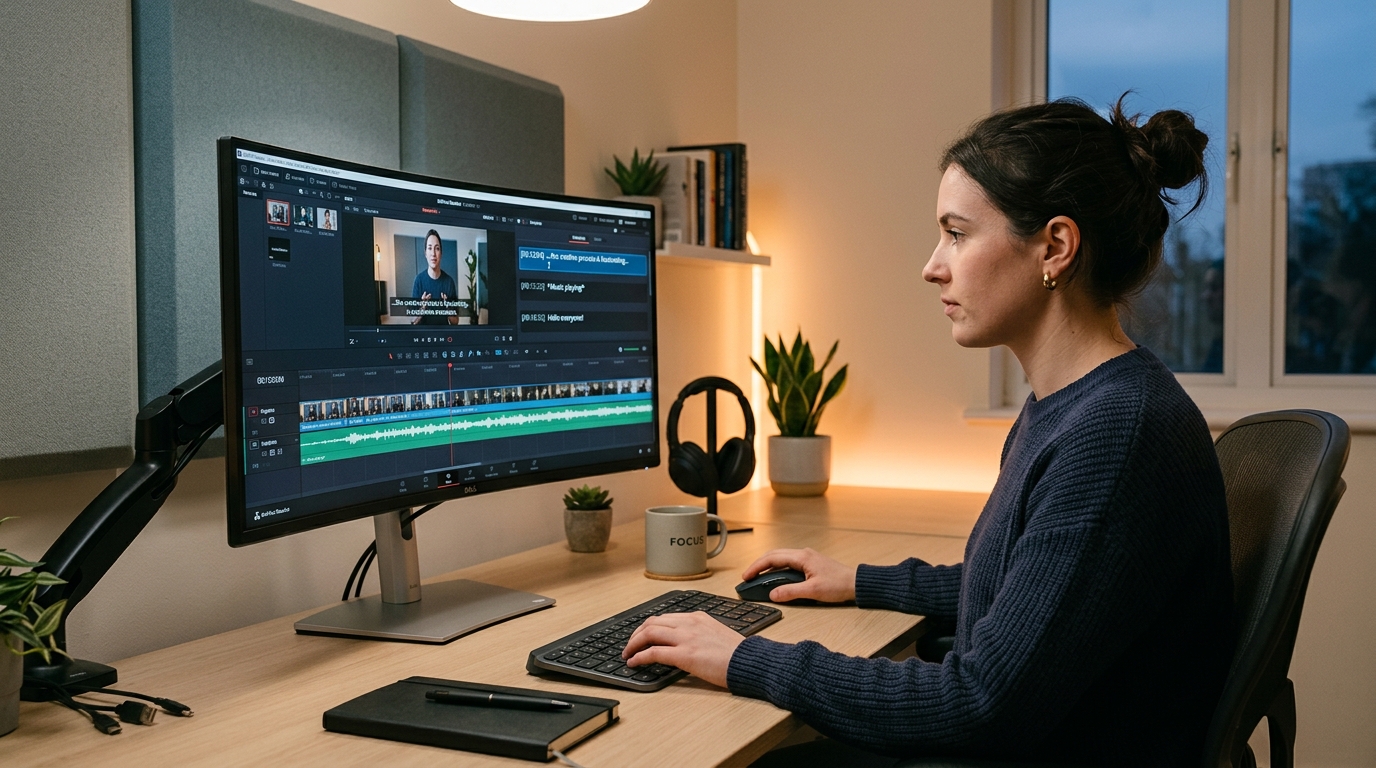
Captions Editing Software: What to Evaluate Before You Commit
Auto-captions are everywhere now. YouTube generates them. TikTok generates them. Instagram generates them. And if you have spent any time watching the results, you already know the problem: a speaker with a slight accent, some background music, or one industry-specific term can turn a clean transcript into a guessing game.
Fixing those errors manually takes 5 to 10 minutes per video. Do that math across 20 videos a week and you have just created a second job.
This article gives you a practical decision framework for evaluating captions editing software: what the tools actually do, where they fall short, what criteria separate them, and how to match the right tool to your actual situation. One approach worth understanding early is bulk automation at scale, which eliminates the single-video bottleneck entirely rather than just making manual cleanup slightly faster.
Key Takeaways
- AI captions are fast but imperfect. Manual review is almost always necessary, and at 5 to 10 minutes per video, that step becomes the production bottleneck as volume grows.
- Tools differ meaningfully on accuracy, correction depth, export options, platform availability, and pricing transparency. These are the criteria that matter, not the feature checklist.
- Free tiers are not equal. A plan that lets you create 30 real, watermark-free videos per month is categorically different from one that adds a watermark after your third export.
- GotReach's free plan includes up to 30 videos per month, one connected social account, and no watermarks. That is a real test of the platform, not a one-video demo.
- For creators publishing more than a handful of videos per week, single-video caption tools are the bottleneck. Bulk creation and multi-platform distribution change the math entirely.
What Captions Editing Software Actually Does (And What It Does Not)
Three terms, plainly defined:
- Auto-captioning: AI listens to your audio and generates a text transcript automatically.
- Caption editing: You review that transcript, correct errors, adjust timing, and style the text.
- Subtitle file export: The finished captions are saved as a file (SRT or VTT) that you upload to a platform separately, or burned directly into the video.
Dedicated captioning tools exist alongside general video editors for good reason. General editors like desktop timeline tools handle cutting, color, and audio mixing. Dedicated captioning tools focus on the specific workflow of generating, correcting, and styling text from speech, and they do it faster with more automation.
The honest baseline: AI captions are fast but imperfect. Background noise, regional accents, overlapping speakers, and technical vocabulary all degrade accuracy. According to AI transcription accuracy research, error rates climb noticeably when audio conditions are less than ideal. Some level of manual review is almost always necessary, regardless of which tool you use.
For a deeper look at how platforms handle specific caption formats and what file types different destinations require, the GotReach guide to captioning formats and platform options covers that ground without duplicating what is here.
The Features That Actually Separate Caption Tools From Each Other
Most tools advertise the same list of features. Fewer explain what those features actually mean for your workflow or disclose where the limits are. Here is the decision framework that cuts through that.
| Evaluation Criterion | What to Check | Why It Matters |
|---|---|---|
| Caption accuracy | How does the tool perform with your accent, audio environment, and subject matter? Is there independent testing? | Inaccurate captions require more manual correction time, which erases the speed advantage of AI. |
| Manual correction depth | Can you edit at the word level, adjust timing per caption, and fix speaker labels? | Without word-level editing, a single wrong word forces workarounds or republishing. |
| Export options | Does the tool export SRT or VTT files separately, or only burn captions into the video? | Burned-in captions cannot be turned off by viewers; separate file export gives you flexibility across platforms. |
| Platform availability | Is the tool web-based, desktop-only, or mobile-only? | Mobile-only tools block desktop workflows; web-based tools offer the most flexibility across devices. |
| Pricing structure | Where do free tiers hit limits? Watermarks, export caps, processing queues, project ceilings? | Hidden limits discovered after you build a workflow create real switching costs. |
| Accessibility standards | Does the tool support caption timing, contrast, and legibility that align with WCAG guidelines? | Accessibility matters for compliance in some contexts and for audience reach in all contexts. |
| Language support | How does accuracy hold up in non-English speech or content with mixed languages? | Many tools perform well in English and degrade significantly in other languages. |
On export formats specifically: burned-in captions are baked permanently into the video file, while SRT and VTT files are uploadable separately. The difference matters because some platforms use your caption file for search indexing and accessibility features. For a full breakdown of how different platforms handle caption formats, the dedicated post covers that in detail.
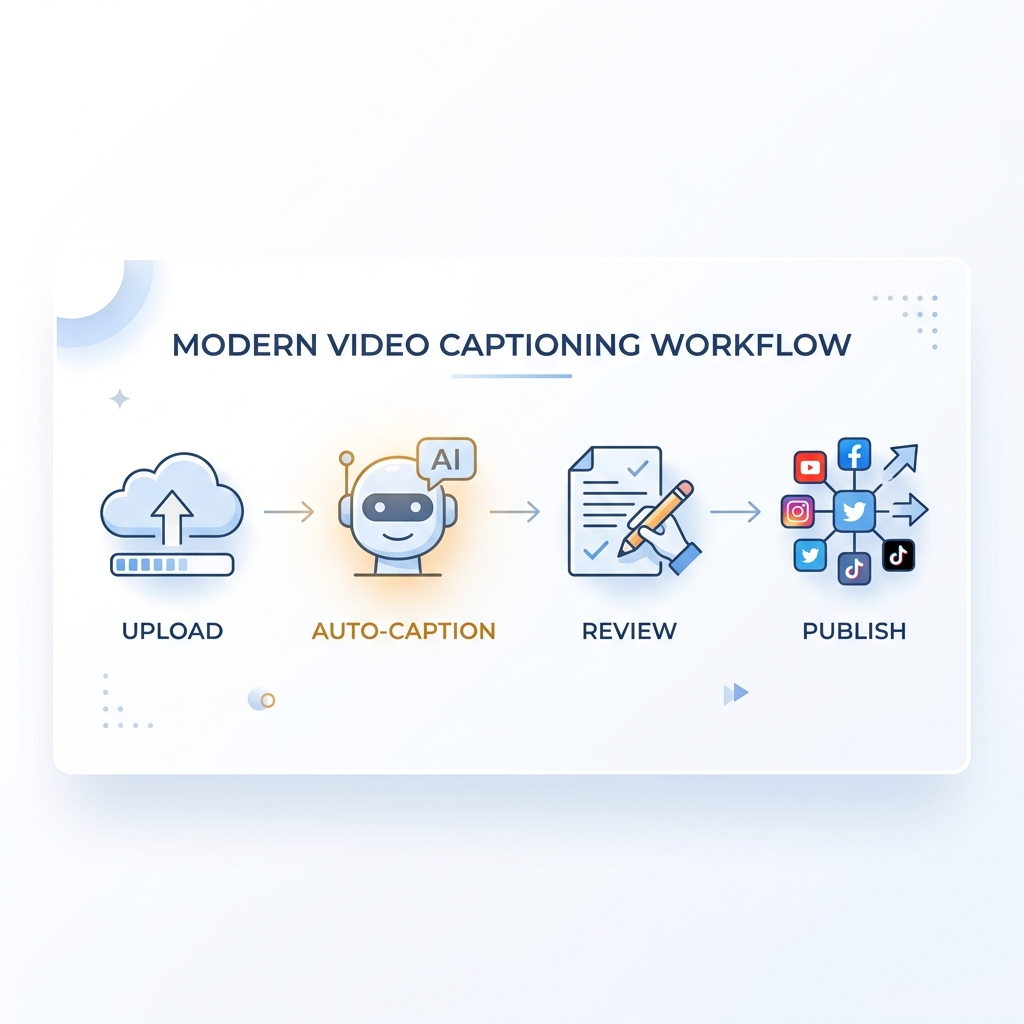
How Caption Editing Actually Works: From Raw Footage to Published Video
Knowing the steps makes the bottlenecks visible. Here is what the caption editing workflow looks like from start to finish, and where single-video tools lose ground at scale.
-
Import or record your video — Upload an existing file or record directly in the tool. Most tools accept common formats; check file size limits on free plans before you upload a long video.
-
Run auto-captioning — The AI processes your audio and generates a transcript. This step is where accuracy varies most across tools. Audio quality, speaking pace, accents, and background noise all affect how clean the output is.
-
Review and manually correct errors — This is the bottleneck. Most tools require you to work through the transcript line by line, correcting words, adjusting timing, and fixing any speaker labels. At 5 to 10 minutes per video, this step alone makes high-volume publishing nearly impossible with single-video tools. A creator publishing 30 videos a week would spend 2.5 to 5 hours per week just on manual caption review.
-
Customize caption style — Font, size, color, position, and animation style. Depth of control varies widely. Some tools offer basic presets. Others allow per-word styling and animated highlights. Know what your content requires before assuming the tool delivers it.
-
Export and publish — Captions are either burned into the final video file or exported as a separate caption file for platform upload. Then the video goes to each platform, one at a time, in most tools.
That last step is where the volume math breaks down for single-video workflows. A creator using GotReach produces up to 300 videos from a single idea in 30 minutes and distributes across seven platforms from one workflow, without switching tools. The bulk automation does not just speed up step 5. It restructures the entire sequence.
Pricing and Free Tier Reality Check: What You Actually Get Before Paying
Free tiers exist to get you inside a tool. What they do not always do is tell you clearly where the limits are until you have already invested time building a project.
| Feature | Typical Free Tier | Typical Paid Tier | GotReach Free Plan |
|---|---|---|---|
| Monthly video limit | 3 to 5 videos | Unlimited or high-volume | 30 videos |
| Watermark on export | Yes, often forced | Removed | None |
| Processing queue | Slower or limited | Priority processing | Standard |
| Connected platforms | 1 or none | Multiple | 1 social account |
| Caption style options | Basic presets only | Full customization | Full access |
| Trial length | Permanent free tier with heavy limits | Paid from day one | 14-day free trial |
A common scenario: a free plan appears generous until you export your third video and discover a branded watermark you cannot remove without upgrading. That is not a free plan. That is a demo with extra steps.
The questions worth asking before committing to any tool:
- How many videos can I create or export per month on the free plan?
- Are there watermarks, and at what point do they appear?
- What happens when I exceed the limit: does the tool stop working or just charge me automatically?
- Is processing speed throttled on free tiers?
GotReach's free plan lets you create up to 30 videos per month with one connected social account and no watermarks. That is enough volume to genuinely test whether the platform fits your workflow, not just enough to watch a feature demo.
When does a paid plan become worth it? When you are publishing more than 30 videos a month, managing multiple platforms or client accounts, or when your team needs centralized control over content creation and scheduling. At that point, the cost of staying on a limited free tier is higher than the upgrade.
Ready to see what each tier actually includes? View GotReach pricing plans before committing to anything.
Which Tool Fits Your Situation: Use-Case Segmentation
There is no single best captions editing tool. There is the right tool for your volume, your team, and your publishing pace. Here is how to locate yourself.
Solo creator, short-form social content: You are publishing a few videos a week, experimenting with platforms, and not ready to pay for a tool you have not tested. Free-tier generosity and mobile-friendly workflow matter most. Manual correction at low volume is manageable.
Creator scaling to multiple videos per week: This is where single-video caption tools become the ceiling. At 20 or 30 videos a week, 5 to 10 minutes of manual review per video is no longer a minor inconvenience. It is a production constraint. GotReach's bulk creation model, 300 videos in 30 minutes from a single idea, changes that math. Speed and volume become possible without sacrificing the human voice in the content.
Marketing agency or team: You need centralized control over multiple clients, consistent publishing across accounts, and a workflow that does not require juggling five separate tools. GotReach Enterprise provides that centralized multi-client control so agencies can maintain quality and publishing pace across all clients without the operational overhead.
Multilingual or global audience: Language support breadth matters. Many tools perform well in English and degrade meaningfully with accented speech or non-English content. Evaluate any tool's non-English accuracy directly with your own content before committing.
Accessibility-focused use cases: Caption timing standards, contrast ratios, and font legibility are not optional if your content has compliance requirements. Check whether the tool gives you enough control over these elements to meet the relevant standards for your context.
| Creator Type | Top Priority | Second Priority | Watch Out For |
|---|---|---|---|
| Solo short-form creator | Free tier generosity | Mobile-friendly workflow | Watermarks, low export caps |
| Scaling creator (20+ videos/week) | Bulk automation speed | Multi-platform distribution | Single-video bottleneck |
| Marketing agency or team | Centralized client control | Consistent publishing workflow | Separate tools per client |
| Multilingual publisher | Non-English accuracy | Language support breadth | English-only quality claims |
| Accessibility-focused publisher | Timing and style control | WCAG alignment | Preset-only styling with no adjustments |
If you are in the scaling creator or agency row and want to test whether GotReach fits before paying, start with a free account and run the full workflow on real content.
For readers whose needs extend beyond captioning into broader AI video tooling, the GotReach guide to evaluating AI-powered video software covers adjacent decisions in the same decision-support format.
See How GotReach Helps Businesses and People Create and Publish More
Caption editing is one piece of a larger content problem: creating enough video, fast enough, without losing what makes it feel human. GotReach is built around that full problem, not just the captioning step.
Start your 14-day free trial today and see what 30 watermark-free videos a month actually looks like in practice.
Not ready to trial yet? Join the list for GotReach updates, potential rewards, future discounts, and launch news at gotreach.com/signup and follow the platform as it grows.
FAQ: Common Questions About Captions Editing Software
What is the difference between captions and subtitles in video editing software?
Captions and subtitles are often used interchangeably, but they serve different audiences. Captions are designed for viewers who cannot hear the audio, so they include speaker labels and sound descriptions in addition to spoken words. Subtitles assume the viewer can hear and are primarily a language translation tool. In most video editing and captioning software, the practical difference is whether the file is intended for accessibility or translation purposes.
How accurate are AI-generated captions and do I need to edit them manually?
AI caption accuracy depends heavily on audio quality, speaking pace, background noise, and whether the speaker has a strong regional accent or uses technical vocabulary. In clean studio conditions with clear speech, accuracy can be high. In real-world conditions, it is common to see multiple errors per minute of audio. For most creators, some level of manual review is still necessary after auto-generation, which is why the correction workflow matters as much as the auto-captioning speed.
What do I get on a free caption editing plan and when will I hit a limit?
Free tier generosity varies widely across tools. Many free plans cap exports at 3 to 5 videos per month, add a branded watermark to every export, or throttle processing speed. GotReach's free plan allows up to 30 videos per month with one connected social account and no watermarks, which is enough to test the platform on real content before deciding whether to upgrade.
Can I export captions as a separate SRT or VTT file, or are they burned into the video?
This depends on the tool. Burned-in captions are embedded permanently into the video file and cannot be turned off by the viewer. SRT and VTT files are separate caption files that platforms like YouTube or LinkedIn use for their own caption player, and they can be updated or replaced without re-exporting the entire video. If platform flexibility or accessibility compliance matters to your workflow, knowing which export options a tool supports before you commit is important.
Does caption editing software work on desktop or only on mobile?
Platform availability varies. Some captioning tools are mobile-first and offer limited or no desktop access, which can be a real constraint if your editing workflow runs on a computer. Web-based tools tend to offer the most flexibility since they run in a browser on any device. Before choosing a tool, confirm whether the features you need are available on the device you actually use for production work.