
Caption Editing Software: How to Choose the Right Tool for Your Workflow
Search for caption editing software and you get a wall of product homepages. Each one claims best-in-class accuracy, a generous free tier, and support for every platform you publish to. None of them tell you how to compare options, what the free tiers actually allow, or why a tool that works perfectly for a 60-second Instagram Reel may be completely wrong for a 45-minute webinar.
This guide takes a different approach. Before naming any tool, it gives you a decision framework: what caption editing software actually does, which criteria separate useful tools from frustrating ones, and how to match the right option to your specific production reality. Whether you are captioning one video a week or hundreds, the right starting point is your workflow, not a vendor's feature list.
Key Takeaways
- Caption editing software handles a distinct job from general video editing. Conflating the two leads to choosing the wrong tool for the work.
- Free tiers almost always include real restrictions: watermarks, minute caps, processing throttles, or file size limits. Most tool homepages bury these details.
- AI caption accuracy is always conditional. Vendor figures assume clean audio, native speech, and minimal background noise. Real-world performance varies.
- The right tool depends on whether you are editing one video at a time or producing content at scale. Those are fundamentally different workflows with fundamentally different tool requirements.
- Export format matters as much as accuracy. A tool that only outputs hardcoded video cannot produce the caption track YouTube or Vimeo requires.
What Caption Editing Software Actually Does
Caption editing software is a distinct product category from video editing software. Video editors handle cuts, transitions, color grading, and audio mixing. Caption tools handle a narrower, specific job: generating text from audio, synchronizing that text to video timing, and exporting it in a format a platform can use.
Most caption tools perform some combination of three functions:
- Auto-caption generation -- converting spoken audio to timed text using AI transcription
- Manual caption editing -- correcting errors, adjusting timing, controlling line breaks, and adding speaker labels after generation
- Subtitle translation -- converting captions into a second language for multilingual audiences
Few tools do all three equally well. Many mobile apps excel at generation but offer almost no manual editing control. Some browser tools export clean SRT files but lack translation features. Understanding which function matters most for your work is the first filter.
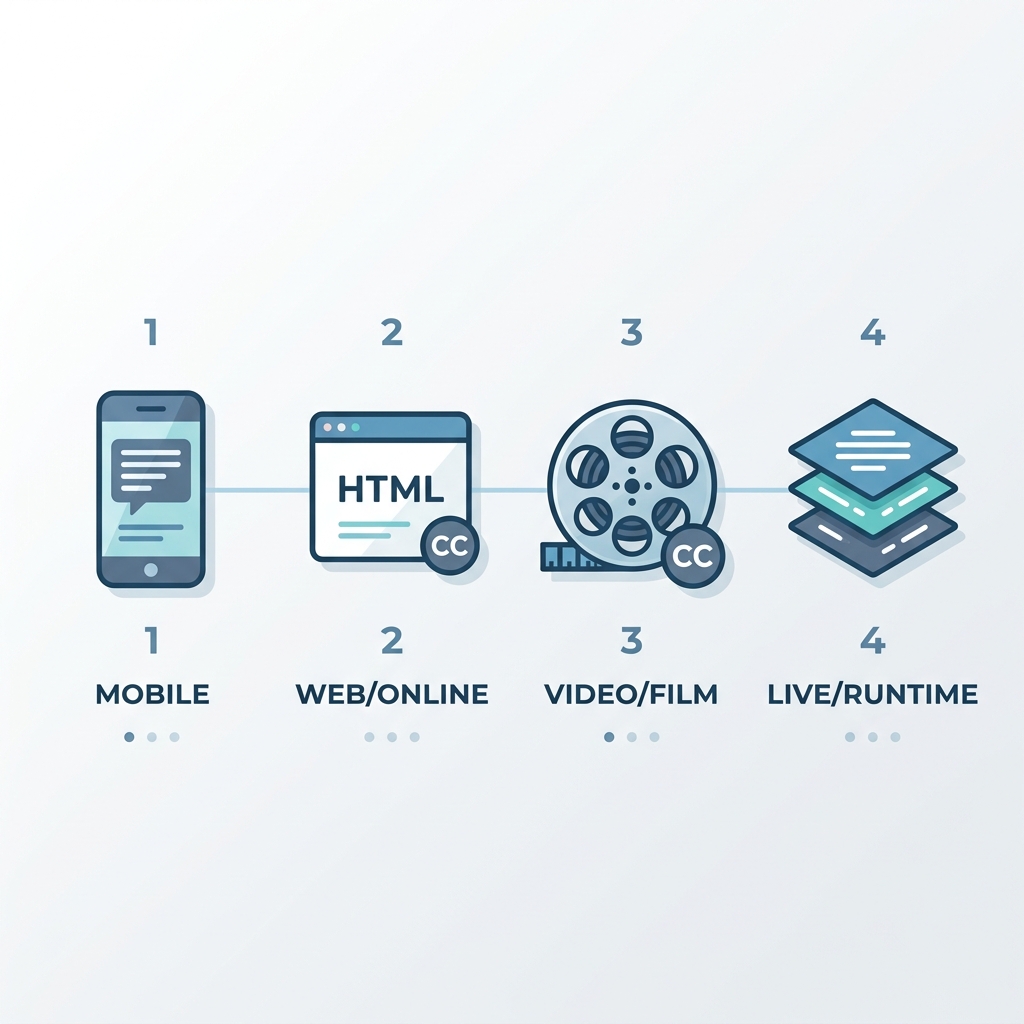
Caption tools also come in three delivery formats, and each has real implications for your workflow:
- Mobile apps are fast for short-form content but often cap file sizes and throttle processing on free tiers
- Browser-based tools are accessible from any device and typically offer stronger export flexibility
- Desktop software provides the deepest editing control but requires installation and a capable machine
One more distinction worth understanding before you start comparing tools: hardcoded captions are burned permanently into the video file. They cannot be turned off by the viewer, and no separate caption file exists. Soft captions (also called open or closed captions depending on configuration) live in a separate file that platforms load alongside the video. Viewers can toggle them on or off, and platforms like YouTube can index the text for search.
A mobile app that auto-generates captions for a 60-second Instagram Reel is a genuinely different product from a browser tool that exports a corrected SRT file for a 45-minute webinar recording. Choosing based on feature lists alone, without accounting for these structural differences, is how creators end up with the wrong tool. For a closer look at how captions are added to video and what the format options mean in practice, that guide covers the implementation layer in detail.
How to Evaluate Caption Editing Software: The Criteria That Actually Matter
Before looking at any specific tool, establish your evaluation criteria. Most tool homepages lead with their strengths and bury their limits. Working from a fixed set of criteria protects you from choosing based on the loudest accuracy claim.
Caption accuracy is the most marketed criterion and the most misunderstood. Vendor-reported accuracy figures are always best-case numbers generated under ideal conditions: clean audio, a single native speaker, no background noise, standard vocabulary. Real-world performance drops with accented speech, overlapping speakers, technical jargon, and ambient sound. Research on automatic speech recognition confirms that background noise, speaker accents, and domain-specific vocabulary consistently reduce transcription accuracy from vendor-reported baselines. A figure of 99% under ideal conditions means roughly 10 errors per 1,000 words before audio conditions degrade it further. For a detailed breakdown of how AI caption accuracy varies by audio conditions, that resource covers the specific variables worth testing before committing to a tool.
Manual editing control is the most underreported differentiator in this category. Some tools generate captions and stop there. Others allow you to re-time individual caption segments, correct word-level errors, adjust line breaks for readability, and add speaker labels for multi-person recordings. If your content includes any technical vocabulary, non-native speakers, or interview-style dialogue, the quality of manual editing tools matters as much as initial generation accuracy.
Export format support determines whether a tool actually works for your publishing destination. SRT and VTT files are required by platforms that support caption tracks. A tool that only burns captions into the video file cannot produce a toggleable YouTube caption track or a caption file for a learning management system.
Free tier real limits are where most tool comparisons fall short. Watermarks, per-month minute caps, per-file size restrictions, and processing throttles are the factors that determine whether a free tier is genuinely usable or just a demo. A 30-minute free tier cap is not usable for a creator producing two one-hour webinars a week, regardless of the tool's accuracy rating.
Platform compatibility shapes the entire workflow. A mobile-only tool is a friction point for a creator who edits on a desktop. A browser tool with no iOS support creates gaps for creators who capture and publish from a phone.
| Evaluation Criterion | Why It Matters | What to Look For |
|---|---|---|
| Caption accuracy | AI-generated captions always require some correction; knowing the baseline sets realistic expectations | Vendor figures are self-reported; test with your actual audio, not their demo content |
| Manual editing control | Auto-generation alone is not enough for technical content, accented speakers, or multi-person recordings | Can you re-time segments, correct individual words, add speaker labels, and control line breaks? |
| Export format support | The wrong format means your captions will not work on the destination platform | Confirm SRT, VTT, TXT, and hardcoded output options before committing |
| Free tier real limits | Watermarks and minute caps make many free tiers impractical for real production | Check the fine print: minutes per month, file size limits, watermark policy, and processing throttles |
| Platform compatibility | A tool you cannot use in your actual environment adds friction every time | Match delivery type (mobile, browser, desktop) to where you actually work |
| Language and translation support | Global creators or multilingual teams need this; most tools treat it as an add-on | Confirm supported languages and whether translation is included or an additional cost |
| Styling and branding control | Social creators need font, color, and animation customization to match brand identity | Look for custom font upload, color control, and animation options if visual brand matters |
Caption Editing Tool Categories: What Each Type Delivers
Caption tools fall into four broad categories. The category a tool belongs to shapes its strengths and limits more than any individual feature.
Mobile-First AI Caption Apps
These tools are built for speed on short-form social content. Upload a clip, generate captions, adjust style, export. The workflow is optimized for a single video at a time. Generation is fast; manual editing is limited. Free tiers typically include watermarks or cap monthly output at a few minutes. Desktop export options are often restricted.
For a creator producing five short-form clips a day for a single platform, a mobile-first app can work well. For anyone publishing longer content or managing volume across multiple platforms, the single-video workflow becomes a bottleneck quickly.
Browser-Based Subtitle Generators
Browser tools are accessible from any device and generally offer stronger export flexibility than mobile apps. SRT and VTT export are common. Team collaboration features exist in some. Free tier minute caps vary widely, from 30 minutes per month to a few hours. Processing time for longer files can be a constraint.
This category is better suited for long-form content creators, webinar producers, and teams that need to share caption files across roles. The tradeoff is that some browser tools have weaker styling customization compared to mobile apps.
Full Video Editors with Caption Tools Built In
Some full video editors include caption generation and editing as a secondary feature. If you are already working inside one of these editors for cuts and color, using the built-in caption tool avoids switching apps. The tradeoff is that caption functionality is not the primary product; it receives fewer updates, and the editing control depth may lag behind dedicated caption tools.
This category suits producers who are already committed to a specific editing environment and do not want to manage multiple tools.
High-Volume Automation Platforms
A fourth category exists for creators, agencies, and teams producing content at scale rather than one video at a time. These platforms are not designed around the edit-one-caption-file workflow. They handle creation, automated editing, and distribution together, removing the per-video time cost that accumulates at volume.
For teams publishing daily across multiple platforms, the per-video caption workflow is not a minor inconvenience. It is the ceiling on how much content gets published.
| Tool Category | Accuracy Framing | Free Tier Reality | Export Formats | Editing Depth | Best For |
|---|---|---|---|---|---|
| Mobile-first AI app | Vendor-reported; optimized for short, clean audio | Watermarks common; minute caps typical | Hardcoded video; limited SRT | Style customization strong; re-timing and correction limited | Short-form social creators, single-platform publishing |
| Browser-based subtitle generator | Vendor-reported; varies by audio conditions | Minute caps vary (30 min to a few hours per month); fewer watermarks | SRT, VTT, TXT typically included | Stronger correction and re-timing; styling varies | Long-form content, webinars, course creators, teams |
| Full video editor with captions | Caption accuracy secondary to editing suite; less frequently updated | Tied to full editor plan; free tiers limited | Depends on editor; SRT sometimes available | Integrated but secondary; correction control varies | Creators already invested in a specific editing environment |
| High-volume automation platform | Automated AI editing; not positioned as a caption accuracy tool | Varies by platform; check plan limits carefully | Depends on platform; distribution-focused | Creation and publishing automation; not granular caption editing | Agencies, multi-platform publishers, high-volume content teams |
Caption File Formats Explained: SRT, VTT, TXT, and Hardcoded
Exporting the wrong caption format wastes time and sometimes means starting over. Know your destination platform before you export.
Here is a quick-reference breakdown of the four formats you will encounter:
| Format | What It Is | Platforms That Use It | When to Choose It |
|---|---|---|---|
| SRT (SubRip Text) | Plain text file with timestamps and numbered caption blocks | YouTube, Vimeo, LinkedIn, most video platforms | When the platform supports caption track uploads and you want a toggleable, searchable caption file |
| VTT (WebVTT) | Web standard for HTML5 video players; supports styling and positioning metadata | Web players, streaming platforms, some LMS systems | When publishing to a web-based video player or a learning management system that requires VTT |
| TXT (plain text) | Caption text without timestamps or sync data | Transcription archives, blog repurposing, content libraries | When you need the spoken content as text only, not for synced caption display |
| Hardcoded / burned-in | Captions permanently embedded in the video file; no separate file | TikTok, Instagram Reels, Facebook, platforms without caption file upload support | When the destination platform does not accept caption file uploads, or when captions must always display |
A YouTube creator who uploads an SRT file gets a caption track that viewers can toggle on or off, that YouTube indexes for search, and that screen readers can access. The same creator who exports a hardcoded video to YouTube loses all of those platform-level benefits. YouTube's official caption documentation specifies which formats the platform accepts and how to upload them correctly.
For web publishing and learning management systems, VTT is frequently the required format. SRT and VTT carry similar timing data, but VTT includes positioning and styling options that some platforms depend on. If your tool only exports SRT, confirm whether your LMS accepts it before committing to the workflow.
For a deeper look at caption format methods and how each is applied to video, that guide covers implementation specifics beyond what this evaluation framework addresses.
Matching the Right Caption Tool to Your Workflow
Use-case fit eliminates most tools from your shortlist before accuracy or pricing comparisons even begin. Start with your production reality, not a tool's feature page.
Short-Form Social Creators
If you are producing short-form clips for TikTok, Instagram Reels, or YouTube Shorts, speed and style matter most. Captions on these platforms are almost always hardcoded, because none of them support caption file uploads for short-form content. A mobile-first app with fast generation, strong font and animation customization, and a free tier that handles your volume is the right fit. The question to ask: does the free tier cap out before your monthly output, and does it add a watermark?
Long-Form Course and Webinar Creators
If you are producing webinars, online courses, or recorded lectures, your requirements shift significantly. Files are longer. Accuracy matters more because errors in a course feel unprofessional. You need SRT or VTT export for your LMS. You need manual editing controls that let you correct technical vocabulary and re-time segments where the AI drifted. Prioritize a browser-based tool with a free tier that handles files longer than 30 minutes without throttling, and confirm that the export formats your LMS requires are included.
Enterprise and Education Teams
For organizations where accessibility is not optional, caption quality connects directly to compliance requirements. WCAG, ADA, and Section 508 each set standards for captioned media in different contexts. The W3C Web Accessibility Initiative's guidance on captions outlines what accessible captions require, separate from any vendor's claim. Evaluate whether a tool produces documentation-grade caption files with accurate timing and speaker labeling. Team collaboration features and audit trails matter here in ways they do not for individual creators.
High-Volume Multi-Platform Producers
A creator producing 300 videos in a single content sprint cannot use a tool that processes one video at a time and throttles after 60 minutes per month. At this scale, the per-video caption workflow is not a minor inefficiency: it is the constraint that determines how much content actually gets published.
For creators and teams at this production level, a platform that handles creation, automated editing, and multi-platform distribution together removes the bottleneck that single-video tools create. GotReach produces up to 300 videos in 30 minutes from a single idea and distributes content across seven social platforms from one workflow, with a free tier that includes up to 30 videos per month and no watermarks. For teams weighing plan limits against production volume, reviewing GotReach's pricing tiers is a practical next step before committing to a tool that caps out at the wrong place.
If you are producing content at that pace and publishing across multiple platforms, a single-video caption tool is not a solution. It is a step in a much longer manual process. Start your 30-day free trial to see how GotReach handles creation and publishing at scale without requiring a production team.
Frequently Asked Questions About Caption Editing Software
Q: What is the difference between captions and subtitles?
Captions are designed for viewers who cannot hear the audio. They include not just dialogue but also relevant sound descriptions (music, sound effects, speaker identification). Subtitles assume the viewer can hear and are intended to translate or transcribe spoken dialogue only, primarily for language accessibility. In practice, many platforms and tools use the terms interchangeably, but the distinction matters for accessibility compliance contexts.
Q: Can I edit AI-generated captions manually after processing?
It depends on the tool. Many mobile-first apps generate captions but offer limited manual correction beyond basic text edits. Browser-based tools and desktop software more commonly allow re-timing, word-level correction, speaker labeling, and line break control after generation. Before choosing a tool, confirm specifically whether you can adjust timing and correct errors at the segment level, not just at the whole-file level.
Q: Which caption editing software is free without adding a watermark?
Several browser-based tools offer free tiers without watermarks, but those tiers typically cap monthly output at a limited number of minutes or files. The practical question is whether the cap fits your volume. GotReach's free tier includes up to 30 videos per month with no watermarks and one connected social account. Always read the free tier terms before building a workflow around a tool, since processing throttles and minute caps can make a technically watermark-free tier unusable at real production volumes.
Q: What caption file format should I use for YouTube, TikTok, or LinkedIn?
For YouTube, upload an SRT file to get a toggleable, searchable caption track that the platform indexes. For TikTok and Instagram Reels, those platforms do not support caption file uploads for short-form content, so hardcoded captions burned into the video are standard. For LinkedIn, SRT upload is supported for native video posts. Always check the platform's current documentation before exporting, since format support changes.
Q: How accurate is AI caption generation and what affects it?
AI transcription accuracy figures from vendors are self-reported under ideal conditions: clear audio, a single native speaker, no background noise, and standard vocabulary. Real-world accuracy drops with accented speech, overlapping speakers, technical or industry-specific jargon, and ambient sound. Treat vendor accuracy claims as best-case benchmarks, not guarantees. The only reliable way to evaluate accuracy for your content is to run your own audio through a tool's free tier before committing.
Q: What should I do if my captions are out of sync with the video?
Caption sync errors typically come from one of three sources: variable audio quality or silence gaps the tool did not handle correctly, file format conversion that introduced timing drift, or a mismatch between the video frame rate and the caption timing file. Most browser-based tools include a timeline editor where you can shift individual caption segments forward or backward. If a tool does not offer segment-level timing adjustment, re-timing out-of-sync captions requires a separate subtitle editor. This is one reason manual editing control should be a non-negotiable criterion when evaluating tools.
Choosing the Right Tool Starts with the Right Questions
Caption editing software is not a single product. It is a category that spans mobile apps built for 60-second clips, browser tools designed for webinar producers, and platforms built for teams publishing hundreds of videos a week. No single tool is universally right, and the loudest accuracy claim is rarely the most honest one.
The framework in this guide gives you a set of criteria you can apply to any tool before a marketing claim influences the decision: accuracy under your actual audio conditions, manual editing depth, export format support, free tier real limits, and platform compatibility. Apply those filters first and most tools eliminate themselves.
For creators and teams who have already outgrown the one-video-at-a-time workflow, the constraint is not finding a better caption editor. It is removing the per-video production ceiling entirely. GotReach handles creation, automated editing, and distribution across seven platforms from a single workflow. The free tier includes up to 30 videos per month with no watermarks.
Start your 30-day free trial today and see what a production workflow built for volume actually looks like. Or see how GotReach helps businesses and people create and publish more before committing to a plan.