AI Video Editors with Captions: What They Actually Do, How Accurate They Are, and How to Choose One
Every tool page says the same thing: "99% accuracy," "studio quality," "publish in minutes." None of them explain what those claims mean in practice, and none of them compare themselves to anything. So you end up doing your own research with no useful framework and a browser full of identical landing pages.
This guide cuts through that. It explains what AI video editors with captioning actually do under the hood, what accuracy percentages mean when your microphone is not a professional studio setup, and how to choose the right tool based on how much content you actually need to produce.
GotReach shows up here because it solves a specific problem that most of these tools do not: volume. But that framing only makes sense after you understand the field clearly.
Key Takeaways
- A 99% accuracy claim still means roughly 5 errors in a 500-word video. Under real audio conditions like background noise or a strong regional accent, that number drops to 85-92%. Test with your actual setup before committing.
- Most single-video AI editors take 5 to 10 minutes per video. At that pace, consistent multi-platform publishing becomes a math problem, not a workflow. Tools built for bulk output operate in a different category entirely.
- Free plans are designed to show you the product, not run your content operation. Know exactly what is included before you hit the paywall: export limits, watermarks, and clip length caps vary significantly across tools.
- Caption format is a platform decision, not a technical one. TikTok and Instagram Reels generally require hardcoded captions; YouTube and LinkedIn accept SRT file uploads. Choosing the wrong format means starting over.
- There is no single best AI caption video editor. The right one depends on your posting volume, your platform mix, and whether you need one polished video or three hundred.
What an AI Video Editor with Captioning Actually Does
Upload a 3-minute raw talking-head clip to a capable AI video editor. What comes back: filler words trimmed, styled captions burned in, background noise reduced, and a TikTok-ready export waiting for you. You never touched a timeline.
That is the top of the category. But "AI video editor" covers a wide range of tools, and most sit well below that ceiling.
At the basic end, a captioning-only tool takes your audio, generates a text transcript, and overlays it as captions. The video itself is untouched. You get text on screen and not much else.
A full AI video editor does more: it transcribes and captions, trims filler words and dead air, adds B-roll overlays, adjusts pacing, and exports platform-specific versions. The automation stack replaces what would otherwise be a multi-step manual editing session.
What AI still handles inconsistently: complex narrative restructuring, transcription of heavy accents at headline accuracy levels, and pacing decisions that require genuine creative judgment. The tool handles the tedious work. The creative direction stays with you.
When evaluating any tool, the first question is which category it actually belongs to. A captioning-only app and a full AI post-production system both call themselves "AI video editors." Knowing the difference before you sign up saves significant rework.
Caption Accuracy: What the Numbers Actually Mean
A 99% accuracy claim sounds reassuring until you do the math. On a 500-word video, that is still 5 errors to catch and fix. On a 2,000-word podcast episode, that is 20 errors scattered through your transcript.
And that 99% figure assumes ideal conditions: clean audio, native speaker, quiet room, quality microphone. Most creators are not recording in those conditions.
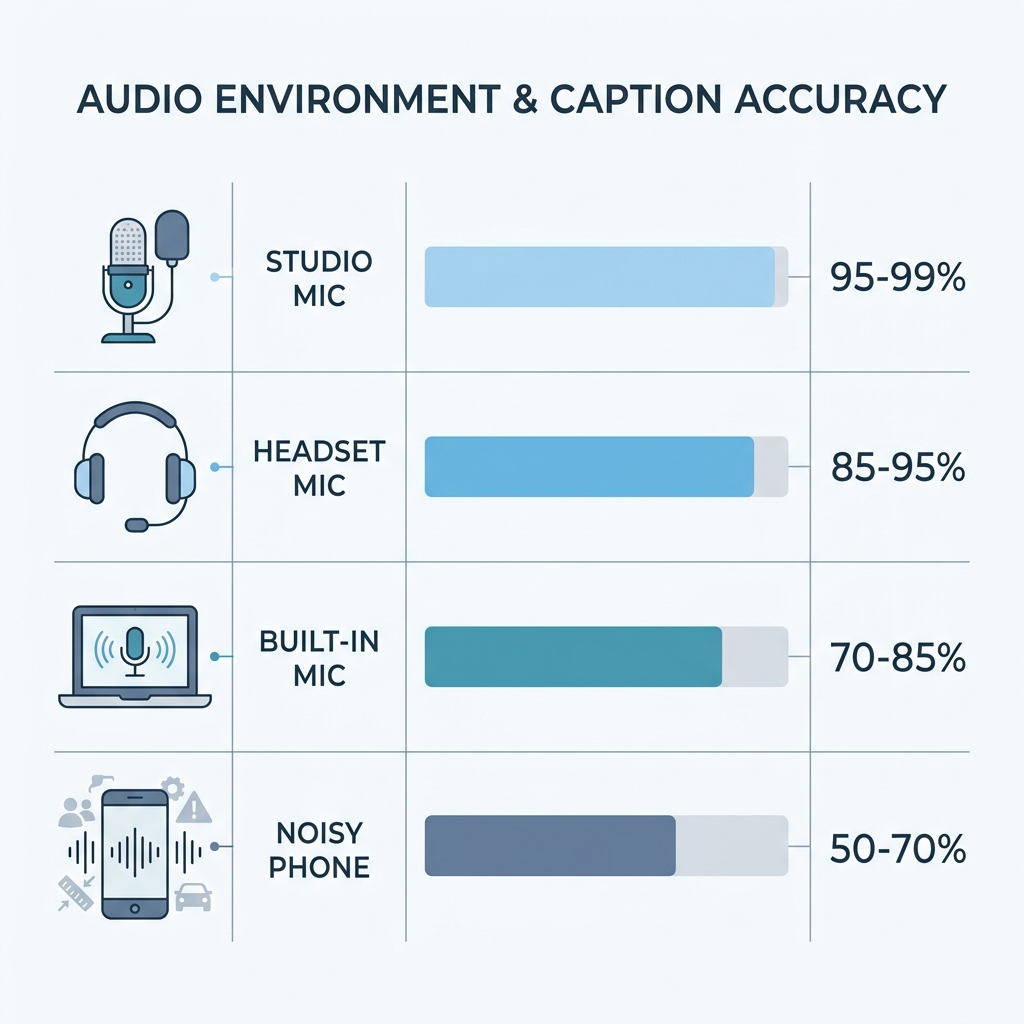
Here is a realistic range based on audio environment:
| Audio Condition | Expected Accuracy Range |
|---|---|
| Clean studio audio, native speaker, quality mic | 97-99% |
| Home setup, quiet room, standard USB mic | 93-96% |
| Phone mic, mild background noise | 88-93% |
| Strong regional accent, background noise, or crosstalk | 82-90% |
| Poor mic quality plus multiple speakers | 75-85% |
Background noise, non-native accents, fast speech, and crosstalk all degrade output. The headline accuracy number is not a lie; it is just measured under conditions most creators do not have.
The better tools flag low-confidence words for manual review rather than silently inserting wrong words. That distinction matters more than the raw percentage. A tool that shows you where it is uncertain saves you from publishing errors you never caught.
Plan your review time based on your actual recording environment, not the benchmark. For a deeper look at how to evaluate accuracy claims across specific tools, how to evaluate caption accuracy across AI tools breaks down the methodology in more detail.
Key Features to Compare Before You Choose a Tool
The feature list on any tool's homepage is a highlight reel. The evaluation framework that actually matters is: what does it do, for how many videos, at what quality, under what plan, and for which platform?
Here are the criteria worth examining:
Language support is not the same as language quality. A tool claiming 125 languages and one claiming 50 are not directly comparable. Transcription accuracy in a given language, and the quality of translation versus transcription, differ significantly. If you create content in a language other than English, test the tool in that language specifically.
Export formats determine where your video can go. Hardcoded captions are burned into the video file and always visible. SRT files are separate text files with timestamps, uploadable to YouTube and LinkedIn. VTT files serve web players and HTML5 environments. Most tools offer hardcoded export; SRT and VTT availability varies by plan.
AI features beyond captions include filler word trimming, noise reduction, B-roll overlay, and eye contact correction. These are often premium-tier features, not defaults. Check which are included on the plan you would actually use.
Free plan usability is where tool marketing diverges most sharply from user experience. Clip length limits, export volume caps, watermarks, and processing queue throttling all appear on free tiers. Most are designed to show you the product, not run your content operation.
Volume capacity is the criterion that separates two genuinely different tool categories. Most AI caption editors are built around one video at a time. At 5 to 10 minutes per video, consistent multi-platform publishing becomes nearly impossible at scale. GotReach operates differently: one idea becomes up to 300 videos in 30 minutes. That is not a faster version of the same workflow. It is a different category of tool entirely.
Tool Comparison: AI Video Editors with Captioning
| Tool | Accuracy Claim | Languages Supported | Free Tier Limit | Export Formats | Best For |
|---|---|---|---|---|---|
| Captions AI | Up to 98% (clean audio) | 28+ | Limited exports, watermarked | Hardcoded, SRT | Solo creators, short-form video |
| VEED | Up to 95% (varies by plan) | 125+ | 10 min video length cap, watermark | Hardcoded, SRT, VTT | Beginners, educators, small teams |
| CapCut | Not publicly specified | 15+ | Feature-limited free tier | Hardcoded | Mobile-first social creators |
| Descript | Up to 95% (clean audio) | English-primary | 1 hour transcription free | SRT, VTT, hardcoded | Podcasters, long-form editors |
| GotReach | Not cited | Not cited | 30 videos/month, 1 account, no watermarks | Not cited (AI editing automation) | Volume creators, marketers, agencies |
Note: Accuracy figures reflect published claims under favorable conditions. Real-world output varies by audio quality. Free tier details change frequently; check each tool's current pricing page before assuming availability.
Which Creator Type Needs Which Kind of Tool
There is no single best AI caption video editor. There is the right one for your specific situation.
Social media creators posting to TikTok, Instagram Reels, or YouTube Shorts need styled captions that match their brand, fast export to mobile-friendly formats, and a tool that can keep up with a high posting frequency. Single-video tools at 5 to 10 minutes per video are a bottleneck at this pace. If you are posting daily across multiple platforms, that math breaks down fast.
Podcasters and educators prioritize long-form transcription accuracy above almost everything else. SRT export for YouTube matters here, along with the ability to review and correct a full episode transcript before it goes live. Accessibility is also a real consideration in educational contexts, where caption compliance may be expected under Web Content Accessibility Guidelines (WCAG).
Marketers and agencies managing content across multiple clients or brands face a different problem entirely. Captioning one video at a time is not a workflow, it is a bottleneck. At that scale, the question is not which tool has the best caption font. It is which tool can keep up with the volume. GotReach Enterprise addresses this directly, offering centralized multi-client management for teams running content across several accounts simultaneously.
GotReach's core capability applies across creator types: one idea becomes up to 300 videos in 30 minutes, distributed across seven platforms from a single workflow. The automation handles the editing work. Your voice, your ideas, and your creative direction stay intact.
Before You Commit: Evaluation Checklist
Run through these questions against any tool you are considering:
- Does the free plan include enough exports for my current monthly volume without watermarks?
- What is the accuracy claim, and under what audio conditions was it measured?
- Does it support the languages I need at acceptable quality, not just in name?
- Can I export in the format my target platforms require (SRT for YouTube, hardcoded for TikTok)?
- Does it automate more than just captions (B-roll, filler trimming, noise removal)?
- Can it keep up with the volume I actually need to publish consistently across platforms?
Free Plans, Paid Plans, and Where the Limits Actually Kick In
Free tiers are real. They are also designed to show you the product, not run your content operation. Knowing exactly where the ceiling is before you start saves frustration and wasted rework.
The most common free-tier constraints across AI video editors: clip length caps (often 10 minutes or less per video), monthly export volume limits (sometimes as low as 3 to 5 exports), watermarks on exported files, and processing queue throttling that pushes free users to the back of the line during peak usage.
Free plan feature availability also changes frequently. What was included six months ago may be paywalled now. The safest approach is to check each tool's current pricing page before assuming anything is included.
GotReach's free plan offers 30 videos per month, one connected social account, and no watermarks. That is a concrete, usable starting point, not a preview that locks you out before you can test the product.
If you are evaluating whether a paid plan is worth the investment, do the math: take your monthly video volume, multiply by the time cost of your current single-video workflow (5 to 10 minutes per video at minimum), and compare that total to the subscription price. At volume, the gap closes fast.
To see current GotReach plan details and compare tiers, see how GotReach is priced.
Caption Formats and Platform Compatibility: A Quick-Reference Guide
Format choice is a platform decision, not a technical one. Match the format to where the video lives.
The three main formats:
Hardcoded captions are burned directly into the video file. They are always visible and require no separate upload. No player or platform setting can turn them off. This is what most short-form platforms expect.
SRT files (SubRip Subtitle format) are separate text files that pair timestamps with caption text. They upload directly to platforms like YouTube and LinkedIn, where the platform handles display and the viewer can toggle them on or off.
VTT files (WebVTT format) serve web players and HTML5 video embeds. Less common in social publishing, more common in web-hosted video content.
Here is where each format works:
| Platform | Hardcoded | SRT Upload | VTT Upload |
|---|---|---|---|
| YouTube | Supported | Recommended | Not standard |
| TikTok | Required (auto-captions limited) | Not supported for upload | Not supported |
| Instagram Reels | Required | Not supported | Not supported |
| Supported | Supported | Not supported |
YouTube's supported caption formats are documented in YouTube's official caption upload guide. For TikTok and Instagram, hardcoded captions remain the most reliable approach because native subtitle file upload is limited or unavailable.
For deeper guidance on adding captions to specific platforms and choosing between format methods, caption format options by platform covers the instructional layer in full.
Frequently Asked Questions
How accurate are AI-generated captions, and will I need to correct them?
Yes, you will likely need some correction, and how much depends almost entirely on your audio setup. Under clean studio conditions with a native speaker, most tools reach 97-99% accuracy. On a phone mic with background noise or a strong accent, expect 82-92%. On a 500-word video at 99% accuracy, that is still 5 errors. Build review time into your workflow based on your actual recording conditions, not the headline number.
What is the difference between closed captions, subtitles, and hardcoded captions?
Closed captions can be toggled on or off by the viewer and typically travel as a separate file (SRT or VTT). Subtitles translate spoken dialogue into another language and behave similarly. Hardcoded captions, also called open captions, are burned directly into the video and are always visible regardless of viewer settings. Platform and accessibility requirements usually determine which you need.
Which AI video editor with captions has the best free plan?
It depends on your volume and whether watermarks are a dealbreaker. Most free plans cap you at 3 to 10 exports per month and watermark everything. GotReach's free plan includes 30 videos per month, one connected social account, and no watermarks, which is a meaningfully higher starting point than most competitors. If you are posting frequently across platforms, that gap matters.
Can AI video editors automatically translate captions into other languages?
Some can, but language count is not the same as translation quality. A tool listing 125 supported languages may offer strong English transcription and inconsistent quality in others. If multilingual captioning matters for your audience, test the specific language you need rather than relying on the number in the marketing copy.
Which caption format should I use for YouTube, TikTok, and Instagram?
For TikTok and Instagram Reels, use hardcoded captions burned into the video. Neither platform supports reliable subtitle file uploads for creator content. For YouTube, SRT upload is the recommended approach and gives viewers the ability to toggle captions. LinkedIn accepts SRT uploads as well. See the quick-reference table in the section above for a full platform breakdown.
Do I need video editing experience to use an AI caption video editor?
No. The point of AI editing automation is that the tool handles the timeline, the trimming, and the formatting. You provide the raw footage and the idea. Most tools in this category are built for creators who do not have post-production backgrounds. The learning curve is typically getting comfortable with reviewing and adjusting AI output, not learning editing fundamentals.
Ready to Stop Doing It One Video at a Time?
If you have made it through this guide, you have a clear picture of what these tools actually do, what accuracy claims mean in practice, and which type of tool fits which creator situation.
If the bottleneck you identified is volume, GotReach is where the math changes. One idea becomes up to 300 videos in 30 minutes, published across seven platforms from a single workflow. Your voice and creative direction stay intact. The tedious work is handled.
The free plan gives you 30 videos per month, one connected account, and no watermarks. No commitment needed to find out whether it fits your workflow.
Start your 30-day free trial and see what consistent, high-volume publishing actually looks like.