GotReach does not currently clip long-form videos. This article discusses the broader clipping category. For GotReach, use the planned short-form recording workflow, then add captions and schedule the finished videos.
AI Clip Makers: How They Work, What They Actually Produce, and How to Choose the Right One
Turning a one-hour interview into a week of short-form content manually takes most creators three to five hours — finding the moments, trimming the clips, adding captions, resizing for each platform. AI clip makers promise to collapse that to minutes. The category has exploded, and so has the marketing noise around it.
If you have already searched for an AI clip maker, you have likely landed on a dozen tool pages making the same promises: viral results, one-click automation, no experience needed. Pricing is buried or missing. Free plan limits are vague. And none of them tell you what the AI actually analyzes or where it will let you down.
This article does something different. It explains how AI clip makers actually work under the hood, compares the leading tools across the criteria that matter for a real purchase decision, and gives you a framework for matching a tool to your specific content type and publishing pace. No hype, no hidden conditions.
Key Takeaways
- AI clip makers automate clip selection, captioning, and resizing — but reviewing AI selections and proofreading captions is still a normal part of any professional workflow.
- Free plans vary significantly: some watermark all output, others cap clips at two or three per video, and a few genuinely give you usable volume at no cost.
- The best tool depends on your content type. Dialogue-heavy video responds well to AI detection; visual-heavy or non-English content requires more manual oversight.
What an AI Clip Maker Actually Does
An AI clip maker takes a long video and identifies the segments most likely to hold attention in a short-form feed — then formats those segments for the platforms you are publishing to. That is the core function. Here is what that actually means in practice.
The AI does not watch your video the way a human editor does. It analyzes the audio transcript for speech density, topic transitions, and pacing signals. It looks for moments where a speaker introduces a new idea, delivers a clear statement, or shifts from one point to the next. These are the patterns that tend to retain viewers on short-form feeds. For a deeper look at how AI systems parse speech and detect meaningful moments in video, this breakdown of AI speech and scene detection explains the process without vendor spin.
Once the AI selects its candidate clips, it handles three additional outputs automatically:
- Clip segmentation -- the video is cut at the identified start and end points
- Aspect ratio conversion -- 16:9 landscape footage is reformatted to 9:16 vertical for TikTok, Reels, and Shorts
- Caption overlay -- auto-generated captions are burned in or added as a subtitle layer
What does not happen automatically: the AI does not decide which clips are actually relevant to your audience, brand, or narrative arc. That call is still yours.
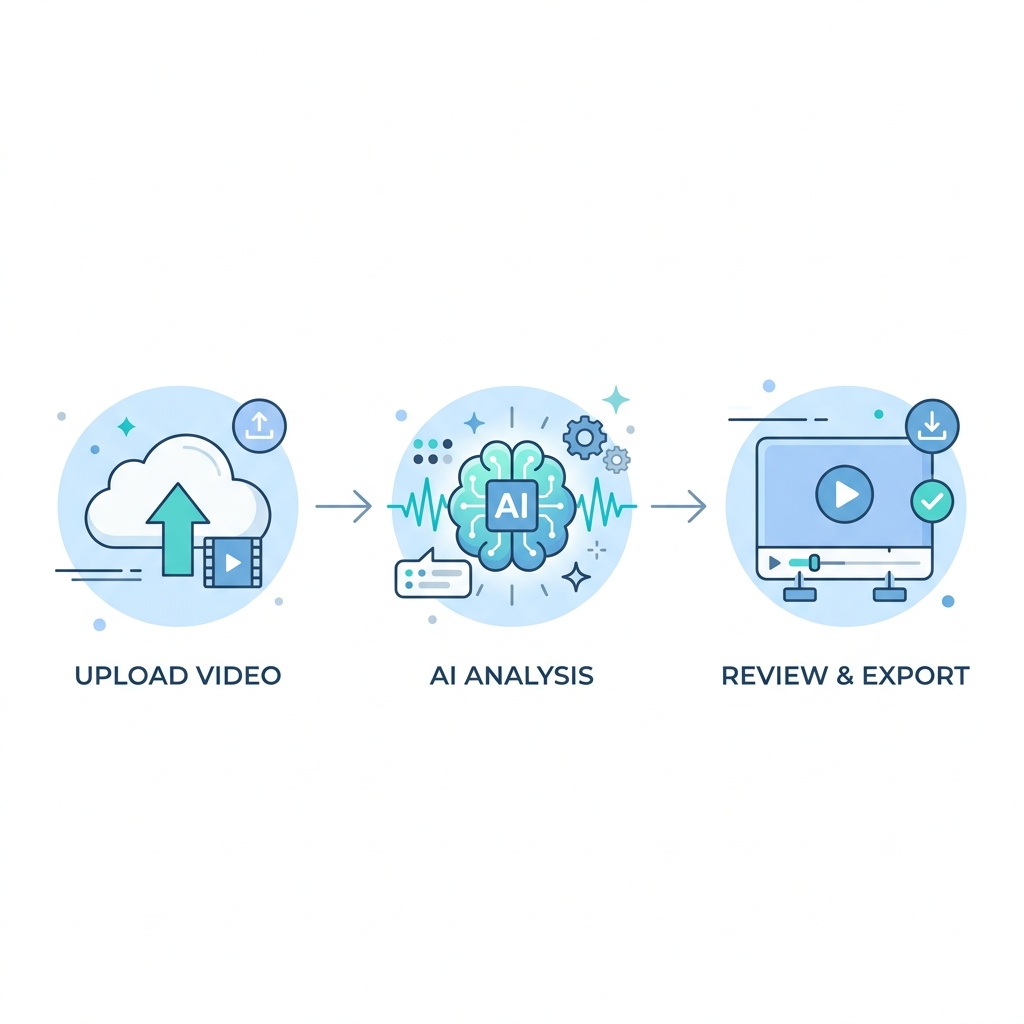
The AI Clip Workflow in Three Steps
- Upload or link your video. Most tools accept direct file uploads. Some accept YouTube links or links from recording platforms. The video goes into the AI pipeline.
- The AI analyzes and selects. Speech patterns, topic transitions, and pacing signals are scored. The tool returns a set of candidate clips, usually ranked by a relevance or engagement score.
- You review and export. You approve, reorder, or discard clips. You proofread captions. You export in the format and resolution your platform requires, or the tool publishes directly if it has that integration.
Realistic output: a 60-minute video typically yields 10 to 20 AI-selected clips in a few minutes of processing time. Not hundreds. The AI narrows the field to the strongest candidates. A podcaster uploading a 45-minute episode might get 12 clips flagged, approve 8 of them, edit 2 caption lines, and schedule the batch -- all in under 30 minutes including review. That is a real workflow outcome, not a demo scenario.
"Fully automated" is a spectrum. The tedious parts -- scrubbing a timeline, manually adding captions, resizing for five platforms -- are handled. The editorial judgment is still yours.
Comparing the Leading AI Clip Makers
The differences that matter most rarely appear on tool landing pages. Free plan limits, watermark policies, and publishing integrations are where most evaluators get surprised after they sign up. The table below covers those specifics.
| Tool | Free Plan Clips/Mo | Watermark on Free Plan | Languages Supported | Publishing Integration | Starting Paid Price |
|---|---|---|---|---|---|
| OpusClip | Varies by plan; limited free tier | Yes, on free tier | Multiple (English strongest) | Direct publish to select platforms | ~$15/mo (varies) |
| Vidyo.ai | Limited monthly minutes | Yes, on free tier | Multiple | Download and manual upload | ~$29/mo (varies) |
| Spikes Studio | Limited; geared toward stream highlights | Yes, on free tier | Limited | Download-first; some integrations | ~$19/mo (varies) |
Note: Competitor pricing and plan structures change frequently. Verify current limits directly with each tool before committing.
Which AI Clip Maker Fits Your Content and Workflow
The comparison table tells you what each tool offers. This section tells you which one to actually use based on what you create and how fast you need to publish.
Podcasters and long-form interview creators are the best-served audience for AI clip detection. Structured dialogue with clear topic transitions gives the AI exactly the kind of signal it is trained to find. Look for tools with strong transcript-based clipping and reliable caption accuracy on clean audio.
Livestreamers and gaming creators face a harder problem. AI clip detection is built primarily around speech patterns. High-visual, low-speech content -- gameplay highlights, action sequences, physical demonstrations -- gives the AI less to work with. For this audience, manual override controls matter more than AI score rankings. Choose a tool that lets you drive the selection rather than relying on the AI to do it.
If you are in the agency or high-volume creator category and want to see how the workflow actually runs, starting a free trial before evaluating paid options is a low-risk way to test fit.
Creator Type vs. Priority Criteria
| Creator Type | Volume Priority | No-Watermark Free Plan | Manual Override Control | Direct Publishing Integration |
|---|---|---|---|---|
| Podcaster / Interviewer | Medium | High | Low | Medium |
| Livestreamer / Gaming Creator | Low | Medium | High | Low |
| Brand / Marketing Team | High | High | Medium | High |
| Agency / Multi-Client | High | High | Medium | High |
| Solo Short-Form Creator | Low-Medium | High | Low | Medium |
Use this grid alongside the comparison table above. If two columns show High for your creator type, those are your non-negotiables when evaluating any tool.
Where AI Clip Makers Perform Well -- and Where They Fall Short
Every tool page in this category leads with the best-case scenario. Here is what those pages leave out.
Where AI clip detection performs well:
- Structured interviews and podcasts with clear topic transitions
- Talking-head videos with clean audio and defined segments
- Webinars with a clear introduction, body, and conclusion
- Any dialogue-heavy content where the speaker makes distinct, quotable points
Where performance degrades:
- Heavily visual content with minimal speech: workout demonstrations, product B-roll, gameplay without commentary
- Fast-paced, unstructured conversation where multiple people talk over each other
- Non-English content -- most tools claim accuracy figures based on English-language testing; accuracy on other languages varies and is often significantly lower in real workflows
- Technical vocabulary, brand names, and proper nouns that transcription models commonly misread
Caption accuracy is the area where marketing claims and reality diverge most. Most tools state 97 to 99% accuracy. Those figures typically apply to clean, studio-recorded English audio. In real workflows -- accented speakers, background noise, fast talkers, technical terms -- accuracy is lower. Before publishing any AI-captioned clip, review the captions against the audio. For a closer look at how caption formats and platform requirements interact with auto-caption output, this overview of captioning formats and platform requirements is worth a read before you finalize your publishing workflow.
A fitness creator uploading workout demonstration videos with minimal voiceover will get weaker AI clip selections than a health coach recording a 30-minute Q&A session. The same tool, the same settings, very different results -- because the AI is reading speech signals, not visual ones.
Manual review of AI clip selections is not a sign that the tool is failing. It is a normal part of any professional workflow. The AI narrows 60 minutes of footage to 12 candidate clips. You decide which 8 are worth publishing. That division of labor is still a significant time savings -- it just is not fully hands-off.
AI Clip Makers: Honest Tradeoffs
Where AI clipping adds clear value:
- Eliminates manual timeline scrubbing on long-form video
- Produces captioned, resized clips in minutes rather than hours
- Creates a consistent publishing volume that manual workflows cannot sustain
- Reduces the skill barrier for creators who are not trained video editors
Where human oversight is still required:
- Reviewing AI clip selections for relevance, tone, and narrative coherence
- Proofreading auto-captions before publishing -- especially technical terms and proper nouns
- Evaluating clip quality on visual-heavy or non-English content
- Confirming platform specs (aspect ratio, resolution, length) are met before export
How to Get Better Results from Any AI Clip Maker
The AI works with what you give it. Better inputs produce better outputs -- and the creators who get the most from these tools are the ones who understand the process well enough to work with it rather than around it.
Record with clipping in mind. Open with a clear hook. Hit distinct points with natural pauses between them. Wrap each segment cleanly before moving to the next idea. The AI is looking for topic transitions and speech clarity -- giving it those signals means better clip candidates with less manual correction.
Audio quality directly affects clip quality. Background noise, room echo, and inconsistent mic levels all reduce transcript accuracy, which reduces clip selection quality downstream. A basic lapel mic or a quiet recording environment makes a measurable difference in what the AI returns.
Do not skip the review step. The AI ranks clips by predicted engagement signals, not by your editorial judgment. A clip that scores high on speech density may not be the one that represents your brand or moves your audience. Spend three to five minutes reviewing before you export -- that step is where creator judgment still matters most.
Proofread captions before publishing, every time. Auto-captions will miss brand names, product names, and technical vocabulary. They will also misread proper nouns and fast speech. A caption error on a published clip reflects on the creator, not on the AI tool.
Match clip length to platform norms. TikTok and Instagram Reels reward clips under 60 seconds with a strong hook in the first three seconds. YouTube Shorts has similar dynamics. Knowing platform video specs and length requirements before you export helps you set clip parameters that actually fit where the content is going.
Pre-Upload and Post-Clip QA Checklist
Before you upload:
- Audio is clear with minimal background noise
- Video has defined segments: clear hook, distinct points, clean segment endings
- Video length fits within the tool's free plan limit (if applicable)
- File format and resolution meet the tool's upload requirements
After clips are generated:
- Review AI clip selections for relevance, tone, and narrative fit -- not just engagement score
- Proofread auto-captions against the audio, especially proper nouns and brand names
- Confirm aspect ratio and resolution match the target platform's specs
- Verify watermark setting matches your plan tier before exporting
- Check clip length against platform norms before scheduling
Free Plans, Paid Tiers, and When to Upgrade
Pricing is the piece of information most tool pages bury or omit entirely. Here is what free plans actually look like across the category, and what you get when you upgrade.
Free plan realities vary widely. Some tools watermark every clip generated on the free tier, making the output unpublishable under any professional standard. Others cap free clips at two or three per video -- usable for an occasional test, but not a working publishing workflow. A handful cap monthly processing minutes at a level that supports only a few uploads per month.
Cost and Workflow Comparison
| Option | Monthly Volume | Watermarks | Publishing Workflow | Relative Time Cost |
|---|---|---|---|---|
| Typical Competitor Free Tier | 2-5 clips/mo or limited minutes | Yes (most tools) | Download and manual upload | Medium -- limited volume, manual steps |
| Single-Video AI Tools (e.g. Captions) | One video at a time | Varies | Varies | High at scale -- 5-10 min per video adds up fast |
| Manual Editing (e.g. CapCut) | Unlimited | None | Manual upload required | High -- full editor time per clip |
Signs you have outgrown the free tier:
- Your publishing pace consistently exceeds the monthly clip cap
- Watermarks on free output conflict with your brand guidelines
- You need to manage more than one social account from the same workspace
- Your team needs bulk creation or agency-level account management
Ready to Test the Workflow?
If you have read this far, you have a clear picture of how AI clip makers work, where they help, and where they fall short. The next step is putting one to work on your actual content.
Start your free trial and see if it fits your workflow
If you want to create new short videos in batches, explore GotReach content repurposing. For extracting highlights from a long recording, choose a tool that explicitly supports that task.