GotReach does not currently clip long-form videos. This article discusses the broader clipping category. For GotReach, use the planned short-form recording workflow, then add captions and schedule the finished videos.
How AI Clip Generators Actually Work — And How to Choose One That Delivers
There's a version of this that sounds simple: upload a long video, walk away, come back to a folder of polished short-form clips ready to post. That version exists — kind of. AI clip generators have genuinely changed how creators and teams approach video repurposing. A 60-minute podcast that would take two or three hours to clip manually can be processed in minutes.
But most of the marketing around these tools skips the part where you find out what the AI actually did, whether the clips it picked are worth publishing, and how much time you'll spend fixing the ones that aren't. Short-form video has become a dominant content format across platforms, which makes the promise of automated repurposing genuinely valuable — but the gap between the promise and the reality depends on knowing how the technology works and what to look for.
This article isn't a ranked list. It explains how AI clip generators actually process video, what signals they use to pick moments, how free plans compare to paid ones in practice, and what to test during a trial before you spend money. If you're trying to decide whether one of these tools will work for your content, this is the framework product pages don't give you.
Key Takeaways
- AI clip generators analyze long-form video and automatically surface short segments likely to hold viewer attention — but what they surface is a starting point, not a finished cut.
- Moment detection quality varies significantly depending on how well a tool's training data matches your content type; a tool optimized for podcasts may underperform on gaming streams.
- Free plans are useful for evaluating quality, but watermarks, credit limits, and gated features typically make them impractical for real production workflows.
- TikTok, YouTube Shorts, and Instagram Reels each have distinct aspect ratio, clip length, and caption style requirements — the right tool depends partly on which platforms you actually publish to.
- Testing during a free trial only gives you useful signal if you upload your own content and evaluate against specific criteria — this article includes a checklist for exactly that.
What an AI Clip Generator Actually Does
An AI clip generator does one thing at its core: it takes a long video and automatically identifies the segments most likely to hold attention on short-form platforms. The output is a set of clip candidates — trimmed, reframed to vertical, and typically captioned — ready for review and export.
The primary use case is repurposing long-form content. Podcasts, interviews, webinars, live streams, conference talks — content that already exists and already contains value, but in a format that doesn't travel well to TikTok, YouTube Shorts, or Instagram Reels. Without automation, extracting clips from that content means watching through footage, marking in and out points, cropping for vertical, adding captions, and exporting — repeated for every clip. The manual version is slow enough that most creators either don't do it consistently or hire someone to do it for them.
What AI clip generators change is the friction. The tool does the first pass. A 60-minute podcast might surface 8 to 12 candidate clips automatically. You still review them, decide which are worth publishing, and often do some trimming or caption cleanup. But instead of starting from a raw timeline, you're starting from a shortlist.
That's the honest version of what these tools do: they compress the front end of the workflow. They don't eliminate the editorial layer — you still decide what actually goes live.
How the Process Works
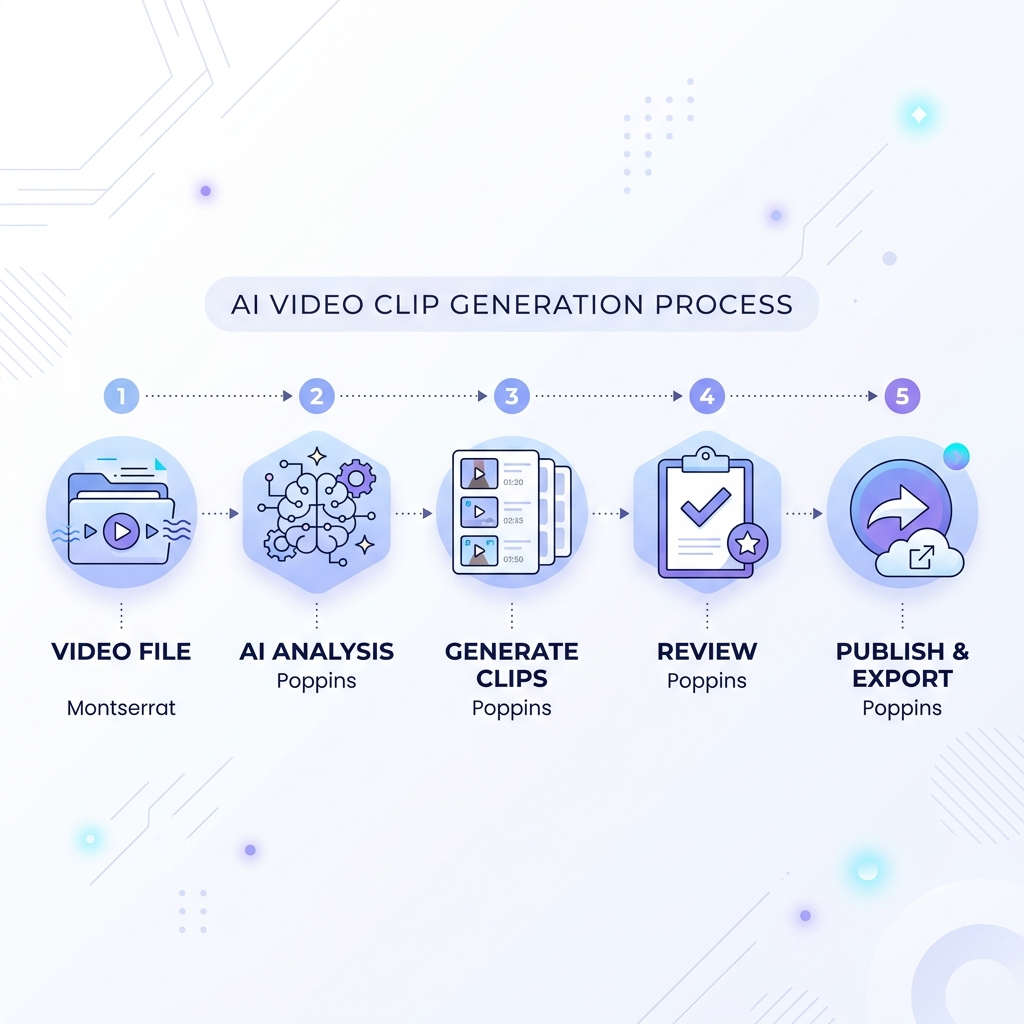
- Upload your source video — the full-length recording, whether it's a podcast episode, webinar, interview, or stream.
- The AI analyzes the video — scanning for signals that indicate clip-worthy moments (more on those signals in the next section).
- Clips are generated automatically — the tool segments the video into short candidates, reframes them for vertical output, and adds auto-generated captions.
- You review the candidates — assess which clips are actually high-value, trim or adjust as needed, and discard the ones that missed.
- Export and publish — send clips to your platforms directly, schedule them, or download for manual posting.
The process is faster than manual editing at every stage. Where it still depends on you is step four. The AI's shortlist is only as good as its detection logic — and that's worth understanding before you choose a tool.
How AI Moment Detection Works
When a tool says it uses "AI to identify your best moments," that phrase is doing a lot of work. The actual mechanism matters, because it explains why results vary — and why the same tool can be excellent for one content type and mediocre for another.
Most AI clip generators identify candidate moments by looking for a combination of signals in the video. Speech energy changes — a spike in volume, a shift in pace, an emphasis pattern — often indicate a moment of heightened engagement. Transcript analysis looks for keyword density, quotable phrases, or moments where a speaker delivers a clear, self-contained point. Scene transitions and visual changes flag moments where something meaningfully shifts on screen. Some tools also incorporate engagement-pattern training: models trained on large datasets of short-form content that performed well, learning to recognize structural patterns that tend to hold attention. Research into AI-based video highlight detection shows that combining multiple modalities — audio, visual, and text signals together — generally produces better candidate selection than any single signal alone.
Here's where the variation comes in: different tools weight these signals differently, and they're trained on different content. A tool optimized primarily for podcast highlights will have learned from speech-heavy, talking-head content — it's good at identifying punchy quotes and topic transitions. Run a 45-minute gaming stream through that same tool and the moment detection may underperform significantly, because the signals it was trained to recognize don't map to that format.
This is the most important thing to understand about "AI-powered" as a differentiator: it's not a feature. It's a starting point. The quality of what gets detected depends on the training data behind the model and how closely your content type matches it. A tool that works well for a business podcast might struggle with a reaction video or a product demo.
The practical implication: always test a tool on your own content before evaluating it. A demo clip the tool has likely been optimized on tells you almost nothing about how it will handle your actual library. Most tools also include manual override controls — the ability to adjust what the AI picked, trim selections, or add your own clip boundaries. How well those controls work is a real differentiator and worth testing specifically.
Key Features to Evaluate Before You Choose a Tool
Product pages list features. What they don't tell you is which features actually affect your workflow — or what "high accuracy" and "smart reframing" mean in practice versus in marketing copy.
Here are the criteria that matter, explained in terms of what they affect and what to check:
Auto-caption accuracy is essential because most short-form content is watched without sound. Accuracy varies by tool, audio quality, accent, and speech pace. A tool that performs well on clear studio audio may produce noticeably more errors on a noisy conference recording or a fast-talking speaker. The only way to know is to test captions against your own source audio, not a platform demo.
Vertical reframing quality matters because nearly all short-form platforms require 9:16 output, and most long-form source footage is horizontal. Reframing requires the tool to track the primary subject and crop intelligently — clips with movement, multiple speakers, or screen-share content are where this gets difficult. Poor reframing cuts off faces, loses the action, or centers on the wrong part of the frame.
Clip count and length controls affect how useful the tool's output actually is. How many clips does the tool generate per video? Can you set minimum and maximum clip lengths? Can you adjust clip boundaries, or is the AI's cut final? More control here means less cleanup later.
Manual editing controls are what you fall back on when the AI gets it wrong — which it will, sometimes. The ability to trim, extend, reorder, or replace AI-selected clips is the difference between a frustrating experience and a workable one.
Export resolution and format determine whether the output is actually publishable. A tool that exports at low resolution on its free tier but high resolution on paid plans isn't delivering the same product across tiers — something worth confirming before you invest time in testing.
Scheduling and publishing integrations matter if you want a single workflow from clip creation to live post. Some tools include this natively; others require you to download and use a separate scheduling tool. Neither is wrong, but knowing which you're getting affects how you evaluate the overall workflow fit.
AI Clip Generator Evaluation Framework
| Feature | Why It Matters | What to Look For |
|---|---|---|
| AI Moment Detection Quality | Determines whether the clips surfaced are worth publishing | Test with your own content; check whether high-energy or high-value moments are selected |
| Auto-Caption Accuracy | Captions drive engagement in silent viewing environments | Review against source audio; note error frequency on fast speech and proper nouns |
| Aspect Ratio Reframing | Vertical formats require accurate subject tracking and cropping | Test crop quality on clips with movement, multiple speakers, or horizontal source footage |
| Manual Editing Controls | AI picks aren't always right — you need a reliable fallback | Confirm you can trim, reorder, override, or adjust clip boundaries easily |
| Export Quality | Resolution affects how clips appear on each platform | Check maximum resolution and available formats on the tier you'd actually use |
| Scheduling and Publishing | Reduces steps between clip creation and live post | Confirm which platforms are supported and whether scheduling is included or an add-on |
Free vs. Paid Plans: What You Actually Get
Free plans serve one useful purpose: testing quality before you commit money. They're generally not designed to support a real production workflow, and knowing what's restricted helps you go in with the right expectations.
The most visible limitation is watermarking. Most free tiers export clips with a tool watermark overlaid. For evaluating clip quality or caption accuracy, this doesn't matter — but for anything going live on a brand or professional account, a visible watermark is a problem. Watermark removal is almost always a paid-tier feature.
Credit and usage limits are the other major constraint. Free plans typically cap the number of videos you can process per month, or impose limits on source video length — often 30 to 60 minutes maximum. For a solo creator testing the tool on occasional content, that may be enough for evaluation. For a team processing multiple client videos weekly, free credits are gone within days.
What Free Plans Typically Include vs. Restrict
| Feature | Free Tier | Paid Tier |
|---|---|---|
| Watermark on exports | Usually present | Removed |
| Monthly video/credit limit | Low (often 1–3 videos or limited minutes) | Higher or unlimited depending on plan |
| Source video length cap | Often 30–60 minutes maximum | Longer recordings supported |
| Export resolution | Standard definition or compressed | Full resolution options available |
| Scheduling and publishing | Usually not included | Included on most paid plans |
| Brand customization | Not available | Available on higher tiers |
| Team or multi-client access | Not available | Available on business or agency tiers |
The upgrade decision usually comes down to workflow volume. A solo creator posting a clip or two per week has different math than a marketing team managing five client accounts that each need weekly short-form content. For the latter, a free tier is exhausted within the first session — the question becomes which paid plan tier matches the actual monthly output.
Platform-Specific Clip Requirements for TikTok, YouTube Shorts, and Instagram Reels
All three major short-form platforms share the same fundamental requirement: 9:16 vertical video. Beyond that, the specifics diverge — and a tool that produces clips optimized for one platform may not produce the best output for another.
| Platform | Aspect Ratio | Recommended Clip Length | Caption Style Notes |
|---|---|---|---|
| TikTok | 9:16 vertical | 15–60 seconds (up to 3 min supported) | Bold, animated captions preferred; hook must land in first 2 seconds |
| YouTube Shorts | 9:16 vertical | Under 60 seconds | Captions optional but support retention; title-based hook matters |
| Instagram Reels | 9:16 vertical | 15–90 seconds | Cleaner caption aesthetic; first frame functions as thumbnail |
Aspect ratio is table stakes — every tool in this category handles it. What actually differentiates tools at the platform level is more nuanced. Google's own guidance on short-form video specifications confirms the technical requirements, but the stylistic decisions — how captions are rendered, how clip pacing is tuned — vary significantly between tools and affect how content performs on each platform.
TikTok audiences expect the hook in the first two seconds. A clip that buries the compelling moment at the five-second mark will lose viewers before they've engaged. YouTube Shorts rewards retention-driven pacing; the platform's algorithm responds to watch-through rate. Instagram Reels have a slightly different aesthetic — cleaner captions, more visual composition — compared to TikTok's text-heavy style.
Some tools are tuned to a specific platform's norms. If you publish primarily on one platform, a tool optimized for that style will produce better default output. If you're publishing across all three, check whether the tool lets you customize caption rendering and clip pacing per destination, or whether it applies a single style to all exports.
Reframing quality is also platform-sensitive in practice. A clip with two speakers switching back and forth, reframed from a horizontal source, will show up differently depending on how sophisticated the tool's subject tracking is. Test specifically with the content type you actually produce, not a solo talking-head clip.
How to Test an AI Clip Generator Before You Commit
A free trial is only useful if you use it as an actual test — not a passive demo. The difference between walking away confident and walking away uncertain is having a specific set of criteria to evaluate against before you start.
The most important rule: use your own content, not a demo clip the tool has likely been optimized on. Upload a video representative of your typical source material — similar length, similar format, similar audio conditions. That's the only way to know how the tool will behave on your actual library.
Here's what to check during that session:
Free Trial Evaluation Checklist
- Upload a real video from your own library (not a provided demo clip)
- Review the first 3–5 clips the AI surfaces — do they reflect actual high-value moments, or did it surface filler sections?
- Check how many clips were generated from your source video and whether the clip count feels appropriate for the length
- Test caption accuracy by reading generated captions against the source audio for at least one full clip — note errors on proper nouns, fast speech, and overlapping voices
- Test reframe quality on vertical export — especially for clips with movement, multiple speakers, or horizontal source footage; confirm the subject is centered and tracked
- Try manually overriding or trimming at least one AI-selected clip to assess how much control the editing interface gives you
- Check export resolution and available file formats on the free tier
- Confirm the watermark policy and what removing it costs on the first paid tier
If the AI's first batch of clips is largely filler — low-energy sections, mid-sentence cuts, moments with no clear value — that's a signal worth taking seriously. One or two misses in a batch of ten is expected. A majority of misses suggests the tool's detection logic doesn't match your content type.
Caption errors on proper nouns and fast speech are common across tools. The question isn't whether errors exist — it's how frequent they are and how easily you can correct them. If caption editing requires significant effort on every clip, that time adds back into the workflow you were trying to compress.
If the evaluation holds up — the clips are relevant, captions are mostly accurate, reframing is clean, and the editing controls work — you have real evidence the tool fits your workflow. That's a much better basis for a purchase decision than a polished marketing demo.
If you want to create new short videos in batches, explore GotReach content repurposing. For extracting highlights from a long recording, choose a tool that explicitly supports that task.